> For the complete documentation index, see [llms.txt](https://docs.openg2p.org/llms.txt). Markdown versions of documentation pages are available by appending `.md` to page URLs; this page is available as [Markdown](https://docs.openg2p.org/1.0.0/guides/user-guides/submit-reimbursement-using-the-service-provider-portal.md).
# Submit Reimbursement Using the Service Provider Portal
## Description
The guide here provides steps to submit reimbursement using Service Provider Portal.
## Pre-requisites
The Service Provider Portal user has login access to the portal using MOSIP ID/National ID. The user should be able to scan the QR code from the entitlement voucher using [SmartScanner App](broken://pages/qKBg8f91ERUYaR2diBAX).
## Steps
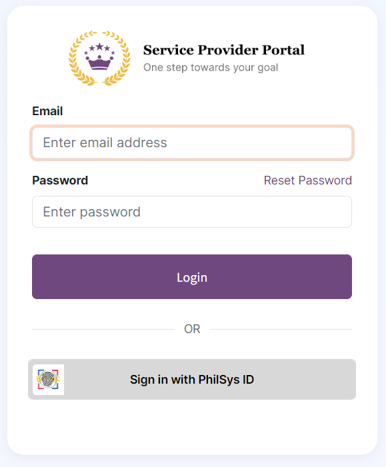
1. Login into the Service Provider Portal using MOSIP ID/National ID. In the example below, the National ID of the Philippines (PhilSys ID) is shown.
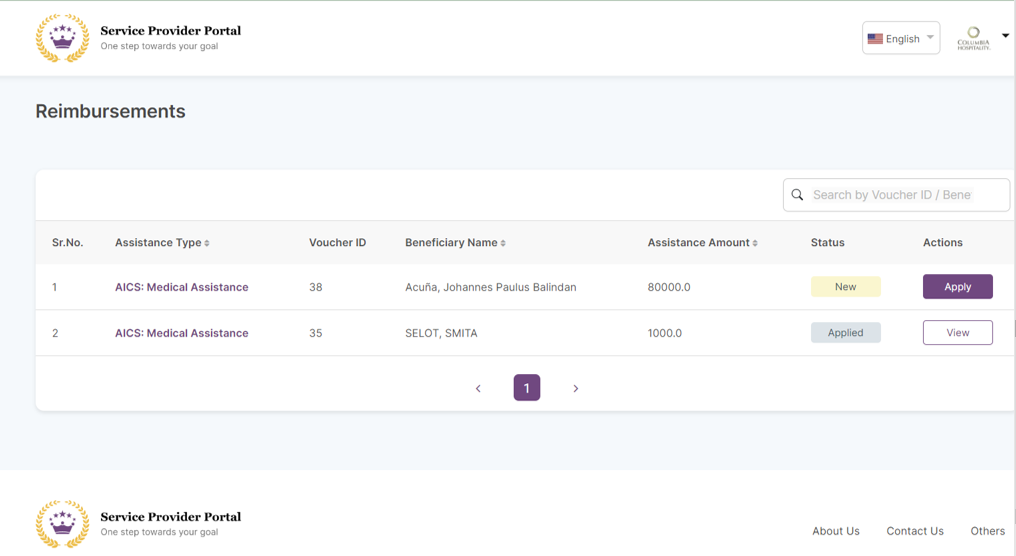
2. Upon successful login, you will see the *Reimbursements* dashboard.
3. Select the desired beneficiary and click on *Apply*. Applying for the reimbursement takes you to the *Submission Form* page.
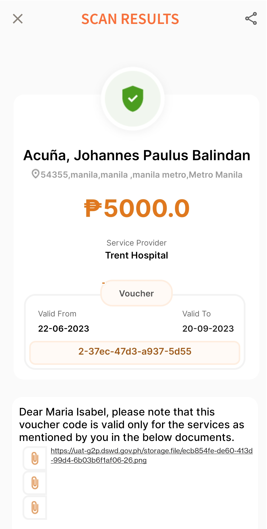
5. The beneficiary details are available by scanning the QR code on the entitlement voucher (also called Guarantee Letter) using the [SmartScanner app](/1.0.0/guides/user-guides/install-smartscanner-app.md). The scan should show details similar to the format in the image below.
6. Enter the details from the scan into the *Submission Form and* click *Submit*. This will show a user prompt to confirm the details. Click *Submit*.
7. Successful submission will show a confirmation page with details such as the application Id and submission date.
8. You can optionally click *Go to Home* to view the submitted reimbursements. You should see that the status of reimbursement has changed to *Applied*.
---
# Agent Instructions
This documentation is published with GitBook. GitBook is the documentation platform designed so that both humans and AI agents can read, navigate, and reason over technical content effectively. Learn more at gitbook.com.
## Querying This Documentation
If you need additional information that is not directly available in this page, you can query the documentation dynamically by asking a question.
Perform an HTTP GET request on the current page URL with the `ask` query parameter, and the optional `goal` query parameter:
```
GET https://docs.openg2p.org/1.0.0/guides/user-guides/submit-reimbursement-using-the-service-provider-portal.md?ask=&goal=
```
`ask` is the immediate question: it should be specific, self-contained, and written in natural language.
`goal` is optional and describes the broader end goal you are ultimately trying to accomplish on behalf of the user. GitBook uses it to tailor the answer towards what is most useful for that goal.
The response will contain a direct answer to the question and relevant excerpts and sources from the documentation.
Use this mechanism when the answer is not explicitly present in the current page, you need clarification or additional context, or you want to retrieve related documentation sections.