# Configure Default Eligibility Manager

This guide provides the step-by-step instructions to configure a Default Eligibility Manager

## Prerequisites

A user should have a Program Manager role to configure a Default Eligibility Manager.

Note:

Refer [***Create User and Assign Role***](https://docs.openg2p.org/~/changes/xKUM0sBXFkyR8F24yAMq/pbms/functionality/administration/role-based-access-control/user-guides/assign-roles-to-users) user guide to know how to assign role for a User.

## Procedure

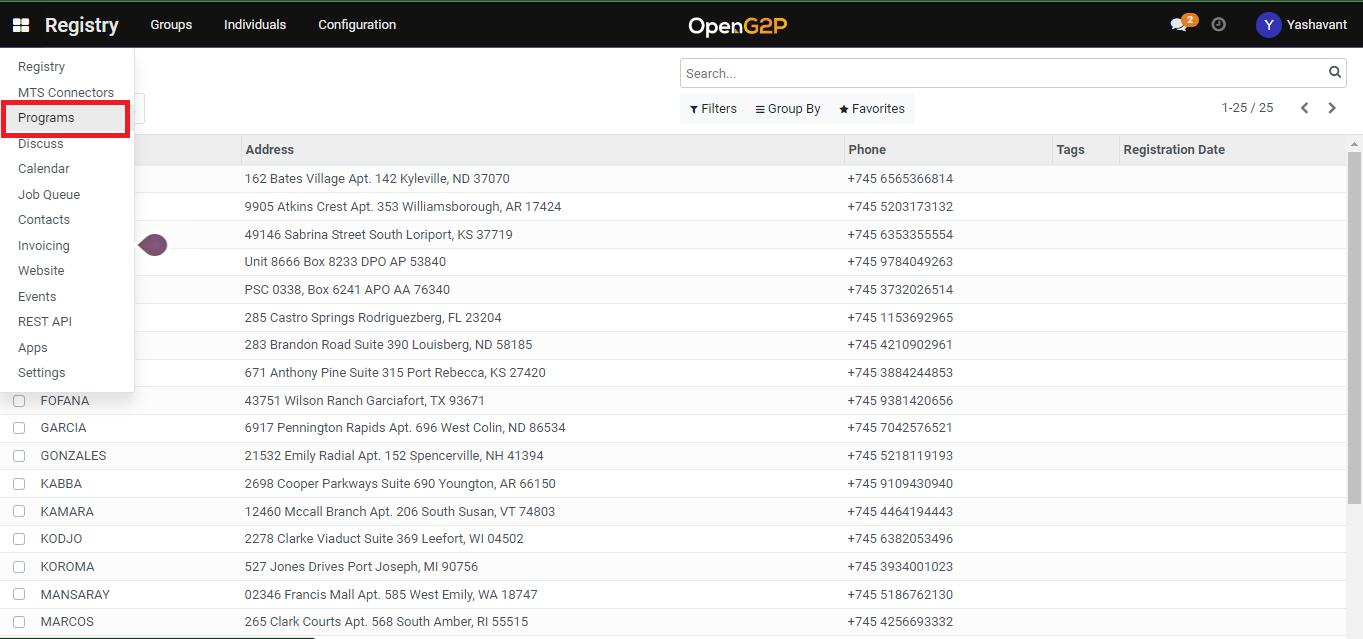
1. Click the main menu icon ![](https://content.gitbook.com/content/JZcdob2emEcLMvLyIxqT/blobs/8OB4tqV7ZFODV0mhFdjA/image.png) and select ***Programs***.
2. The ***Programs*** screen is displayed.

<figure><img src="https://content.gitbook.com/content/JZcdob2emEcLMvLyIxqT/blobs/H2dkZIGu1Blo71BT8qVN/programs.png" alt=""><figcaption><p>Choose the programs module</p></figcaption></figure>

3. Click the ***Configuration*** tab and then select the ***Default Eligibility Managers**.*

<figure><img src="https://3034178245-files.gitbook.io/~/files/v0/b/gitbook-x-prod.appspot.com/o/spaces%2FJZcdob2emEcLMvLyIxqT%2Fuploads%2Fb5qNIHrNDpT9xVgz7I9T%2Fconfigure-default-eligibility-managers.png?alt=media&#x26;token=2ffe1652-73f6-4079-b0e4-b6cdc3275317" alt=""><figcaption></figcaption></figure>

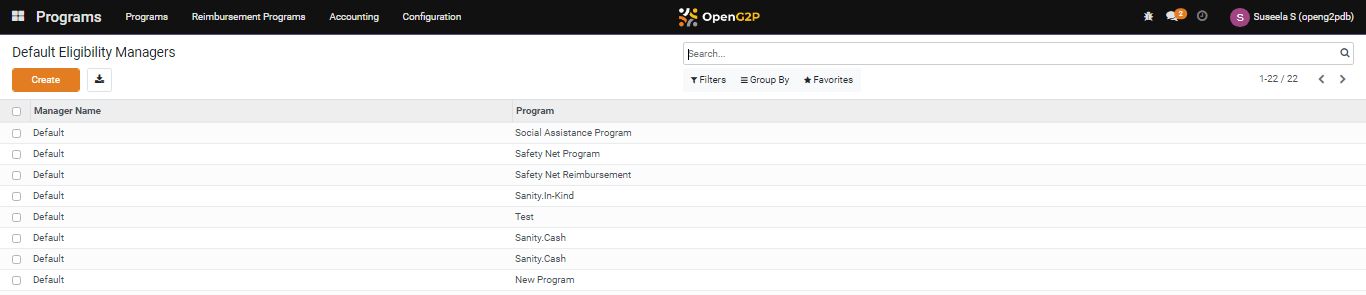
4. ***Default Eligibility Managers*** screen is displayed.

<figure><img src="https://content.gitbook.com/content/JZcdob2emEcLMvLyIxqT/blobs/zUCwT9GFcmVJK3Q7LHpr/default-eligibility-managers.png" alt=""><figcaption><p>Default Eligibility Managers screen</p></figcaption></figure>

***Default Eligibility Managers*** screen provides dashboard view which lists all the Manager Names and the Program list.

In ***Default Eligibility Managers*** screen, the available features and their descriptions are:

<table><thead><tr><th width="130">Feature</th><th>Description</th></tr></thead><tbody><tr><td>Create</td><td>Click the <em><strong>Create</strong></em> button to create new default eligibility manager</td></tr><tr><td><img src="https://content.gitbook.com/content/JZcdob2emEcLMvLyIxqT/blobs/x4RGFVbnbjJV4GPp7wt0/image.png" alt="" data-size="original"></td><td>Click the <em><strong>Export All</strong></em> button to download the details in excel format</td></tr><tr><td>&#x3C;</td><td>Click the <em><strong>Left</strong></em> arrow to go the previous screen</td></tr><tr><td>></td><td>Click the <em><strong>Right</strong></em> arrow to go the next screen</td></tr><tr><td>Filters</td><td><p>Click the <em><strong>Filters</strong></em> link and then select Add Customer Filter.</p><ul><li>Add Customer Filter</li></ul><p>The advanced filter option allows you to define conditions and criteria to refine the search results.</p><ul><li>Select the <em><strong>Add Customer filter</strong></em> and then select the appropriate option in the first drop-down to display the specific data based on the option selected.</li><li>Select the criteria in second and third drop-down to refine the search results.</li><li>Click the <em><strong>Apply</strong></em> button to display the data based on the search</li></ul><p><em>Note: To enhance the search, click the <strong>Add a condition</strong> button and follows the steps given in <strong>Add Customer Filter</strong> option</em></p></td></tr><tr><td>Group By</td><td><ul><li>Click the <em><strong>Group By</strong></em> link and select the option <strong>Program</strong></li><li>The Default Managers are grouped below each program</li><li>Click the <em><strong>Group By</strong></em> link, select <strong>Add Custom Group</strong> and then select the appropriate options in the drop-down to display the specific data based on the option selected.</li><li>Click the <em><strong>Apply</strong></em> button to display the data based on the search</li></ul></td></tr><tr><td>Favorites</td><td><ul><li><p>Click the <em><strong>Favorites</strong></em> link, select <strong>Save current search</strong> and then check the appropriate options. The valid values are:</p><ul><li>Use by default</li><li>Share with all users</li></ul></li><li>Click the <em><strong>Save</strong></em> button to display the data based on the search</li><li>Click the <em><strong>Import records.</strong></em><strong> Import a file</strong> screen is displayed.</li><li>Click the <em><strong>Upload file</strong></em> button, navigate to the file, and import the file in excel or CSV format</li><li>Click the <em><strong>Cancel</strong></em> button to exit the screen</li></ul></td></tr><tr><td>Search</td><td>This field is filled when the available option are selected in Filers, Group By, Favorites</td></tr></tbody></table>

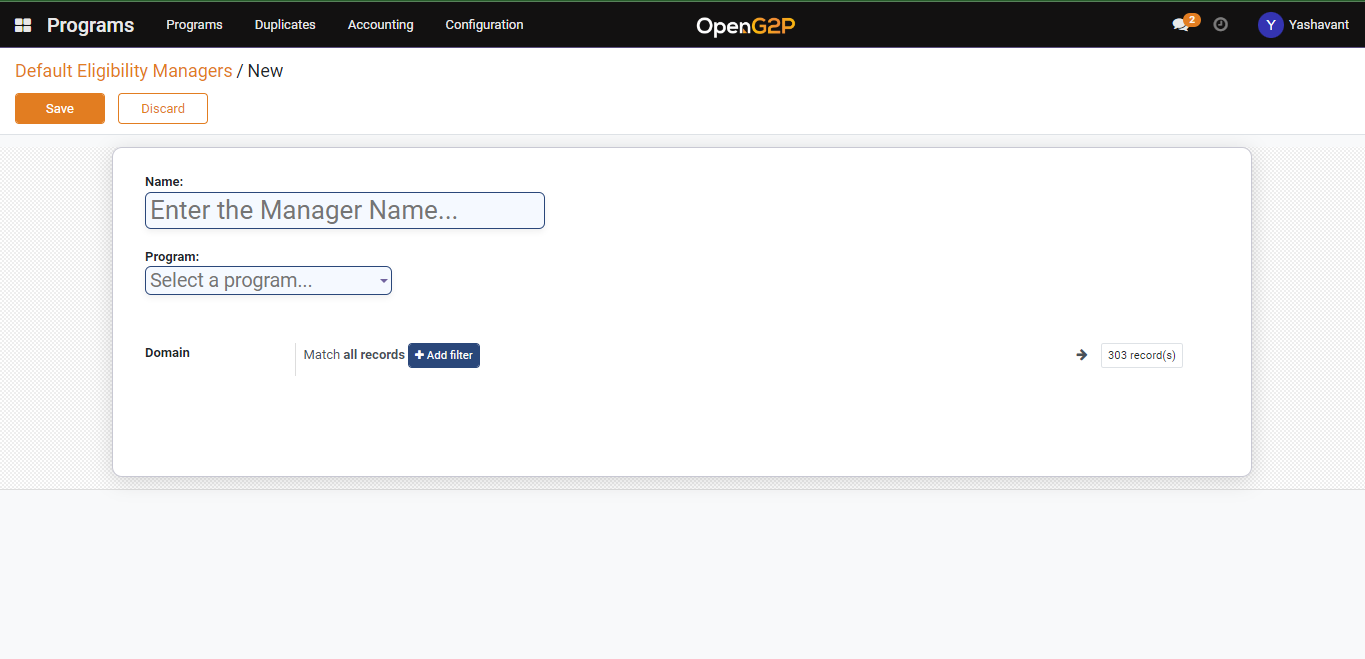
5. Click the ***Create*** button. The Default Eligibility Managers/New screen is displayed.

<figure><img src="https://content.gitbook.com/content/JZcdob2emEcLMvLyIxqT/blobs/ezvVxADEEWNEyuUx9Wfz/default-eligibility-manager-creation-page.png" alt=""><figcaption><p>Default Eligibility Managers/New screen</p></figcaption></figure>

In Default Eligibility Managers/New screen, the features and their descriptions are:

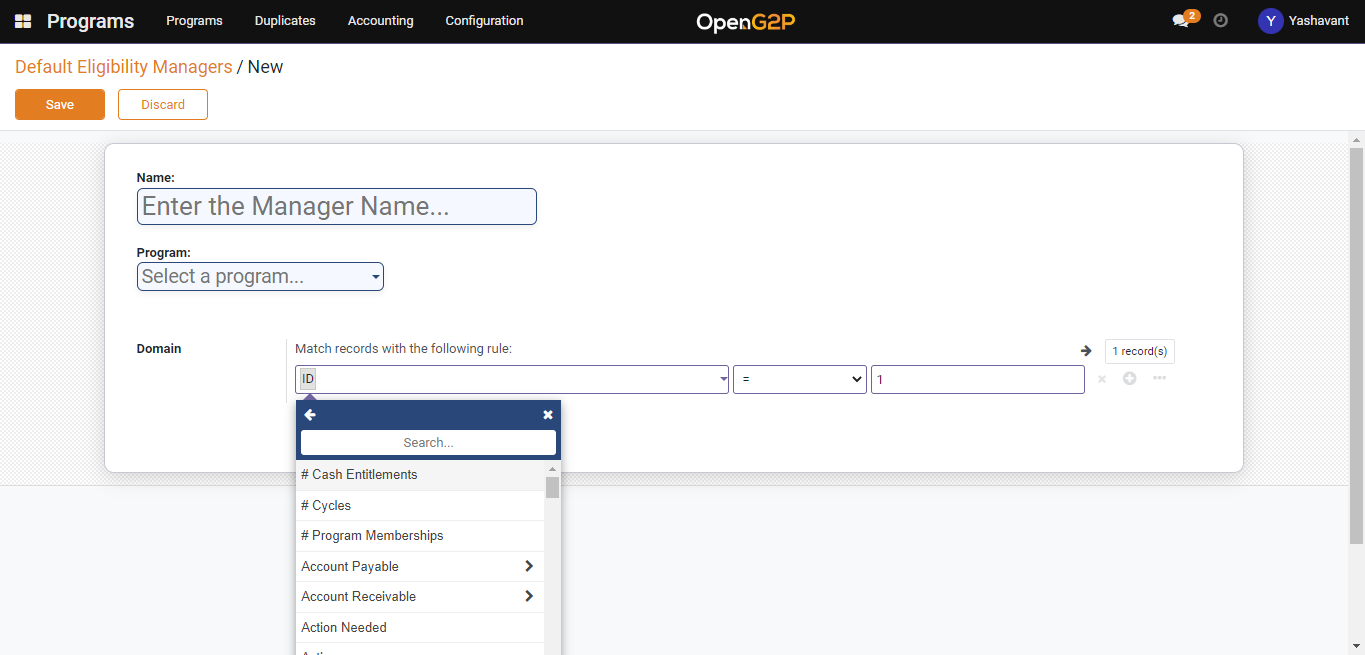
<table><thead><tr><th width="185">Feature</th><th>Description</th></tr></thead><tbody><tr><td>Name</td><td>Enter the name of the eligibility manger</td></tr><tr><td>Program</td><td>Select the program name from the drop-down for which the eligibility manager is created</td></tr><tr><td>Domain</td><td></td></tr><tr><td>Match all records</td><td>Retrieves the data which matches all records</td></tr><tr><td><img src="https://content.gitbook.com/content/JZcdob2emEcLMvLyIxqT/blobs/jPhQbc90Lo2YcGxW8qp8/image.png" alt="" data-size="original"></td><td><p>Click the <em><strong>Records</strong></em> button. The <em><strong>Selected records</strong></em> screen is displayed.</p><p><em>Note:</em></p><ul><li><em>By default the list of three records are listed in the <strong>Selected records</strong> screen.</em></li><li><em>Click the <strong>Cancel</strong> button to close the <strong>Selected records</strong> screen.</em></li></ul></td></tr><tr><td><img src="https://content.gitbook.com/content/JZcdob2emEcLMvLyIxqT/blobs/F9hP3GMGl9RUvZsIuKPj/image.png" alt="" data-size="original"></td><td>Click the <em><strong>Refresh</strong></em> button to refresh the screen</td></tr><tr><td>Add filter</td><td><p>Click the <em><strong>Add filter</strong></em> button to set eligibility criteria using <a href="https://github.com/OpenG2P/openg2p-documentation/blob/1.2.1/beneficiary-management/eligibility.md#domain-filters">Domain Filters</a>. You may set multiple eligibility criteria.</p><ol><li>Click the <em><strong>Add filters</strong></em> button. The multiple criteria fields are displayed.</li><li>Select the multiple criteria such as ID, condition and count.</li><li>Click the <strong>x</strong> button to remove the entry in the criteria fields.</li><li>Click the <strong>+</strong> button to add new multiple criteria field.</li><li>Click the <strong>...</strong> option to display fields in <em><strong>Any of</strong></em> section. The multiple criteria fields are displayed.</li></ol><p><em>Note: You can click the <strong>...</strong> option to add n number of <strong>Any of</strong> section</em></p><ol start="6"><li>The value chosen in the multiple criteria fields are displayed in the <em><strong>Code editor</strong></em>.</li><li>In the Match records chose one of the followings:</li></ol><ul><li><p>Select <em><strong>All</strong></em> to display the data belongs to <em><strong>All</strong></em> section</p><ul><li>Select <em><strong>Any</strong></em> to display the data belongs to <em><strong>Any</strong></em> <em><strong>of</strong></em> section</li></ul></li></ul></td></tr></tbody></table>

<figure><img src="https://content.gitbook.com/content/JZcdob2emEcLMvLyIxqT/blobs/1S6jMuflkmn8TnAwSMwa/default-eligibility-manager-filter.png" alt=""><figcaption></figcaption></figure>

6. Click the **Save** button to save the eligibility manager and it will be listed under the eligibility manager list view page.
7. Click the ***Discard*** button to discard the changes and go back to Default Eligibility Managers list view page.