# Link FA (Self Service)

This document contains step-by-step instructions for the beneficiaries to login self-service portal offered by SPAR (Social Payments Account Registry) and map his/her national ID with their respective bank account, mobile wallet account, and email wallet account.

## Prerequisites

* The user must have access to [SPAR](https://spar.explore.openg2p.net/selfservice/en/login) which is available in public portal via internet
* The user must have his/her National ID, bank account, mobile wallet, and email ID details.

## Procedure

1. Open the SPAR URL on your browser

***SPAR*** self-service portal screen is displayed.

<figure><img src="/files/dY3VOF5mu7FDzzgtCvlp" alt=""><figcaption></figcaption></figure>

2. Click the ***Proceed with National ID*** button.

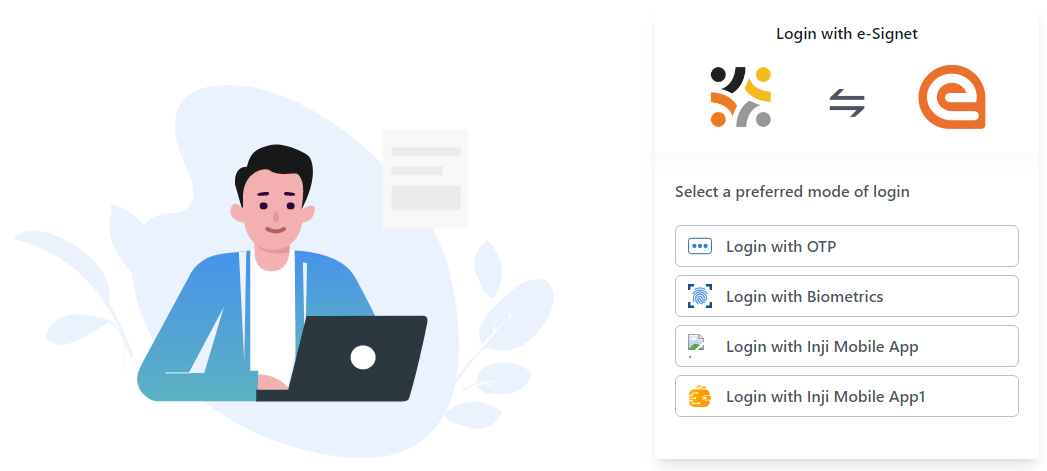
***Login with e-Signet*** screen is displayed.

<figure><img src="/files/54AIux0XLgwbmxxheeYM" alt=""><figcaption><p>eSignet login page.</p></figcaption></figure>

You can select your preferred mode of login.

* [Login with OTP](#login-with-otp)
* Login with Biometrics
* Login with Inji Mobile App
* Login with Inji Mobile App1

### Login with OTP

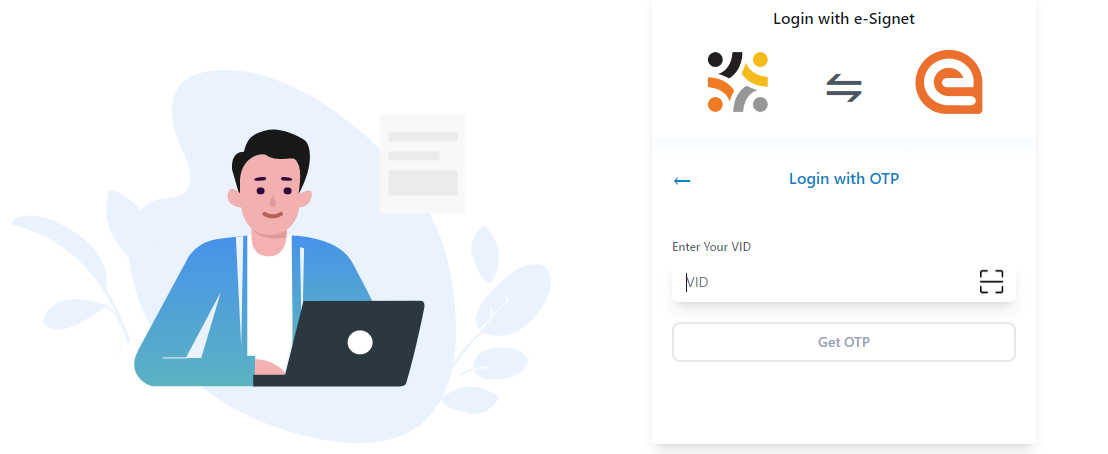
5. Click the ***Login with OTP*** button.

***Login with OTP*** screen is displayed.

<figure><img src="/files/LQIvLQR0JBawrAEeOvsU" alt=""><figcaption><p>Login with OTP.</p></figcaption></figure>

7. Enter the ***VID*** number and click the ***Get OTP*** button.

You receive the OTP number in your registered phone number.

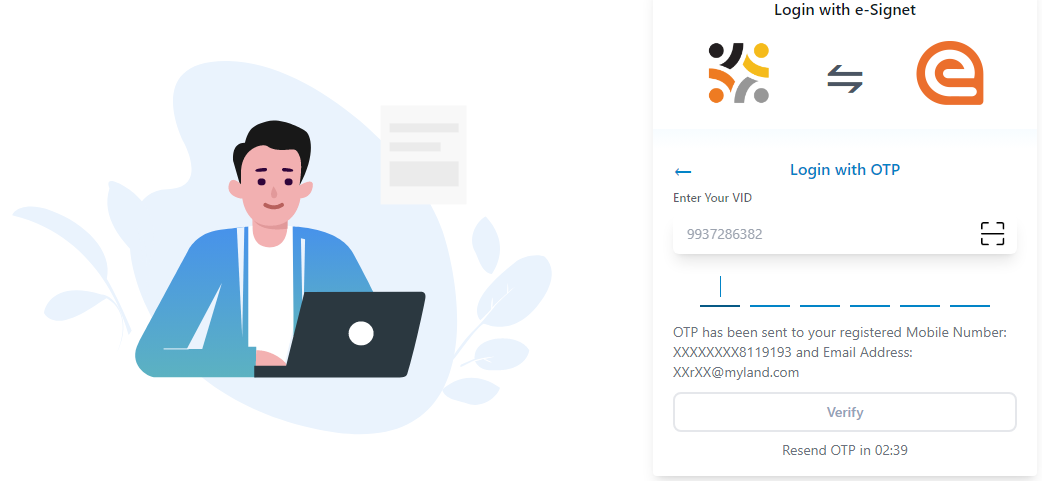
8. Enter the OTP number and click the ***Verify*** button.

<figure><img src="/files/wLlGZZy6j80wDjJnqlCX" alt=""><figcaption><p>OTP verification.</p></figcaption></figure>

***SPAR*** home screen is displayed.

<figure><img src="/files/MrH7KB74rb6eqyKyvoby" alt=""><figcaption></figcaption></figure>

In ***SPAR*** home screen, the features and their descriptions are given below:

| Feature                                                             | Description                                                                                                      |
| ------------------------------------------------------------------- | ---------------------------------------------------------------------------------------------------------------- |
| <img src="/files/nhH4XJs4gvPS1hGKDbzn" alt="" data-size="original"> | Displays your name.                                                                                              |
| Language drop-down                                                  | Select your preferred language from the drop-down. Your preferred language gets reflected in the user interface. |
| UPDATE YOUR ACCOUNT DETAILS                                         | Click to update your account details.                                                                            |

***Update your account information*** screen is displayed.

<figure><img src="/files/o6CAi2HR0T47pN6Ogg4c" alt=""><figcaption></figcaption></figure>

You can find three different modes to update your account details.

* Bank
* Mobile Wallet
* Email Wallet

{% tabs %}
{% tab title="Bank" %}

1. Click the ***Bank*** Type.

You can fill the valid bank details in the respective fields.

| Field         | Description                                        |
| ------------- | -------------------------------------------------- |
| Select Bank   | Select your bank in the drop-down.                 |
| Select Branch | Select your bank's branch in the drop-down.        |
| Type Account  | Enter the 10 digits of your bank's account number. |
| Submit        | Click the ***Submit*** button                      |

<figure><img src="/files/zWMlQjUnO24fx8rdZvwv" alt=""><figcaption></figcaption></figure>

A success message confirms that your account information is updated successfully via bank. Your National ID is successfully mapped to the bank account.
{% endtab %}

{% tab title="Mobile Wallet" %}

1. Click the ***Mobile Wallet*** Type.

You can fill the valid mobile wallet information in the respective fields.

<table><thead><tr><th width="334">Field</th><th>Description</th></tr></thead><tbody><tr><td>Select Mobile Wallet</td><td>Select your mobile wallet in the drop-down.</td></tr><tr><td>Type Mobile Number</td><td>Enter the 10 digits of your mobile wallet number.</td></tr><tr><td>Submit</td><td>Click the <em><strong>Submit</strong></em> button</td></tr></tbody></table>

<figure><img src="/files/4K3nlYqhGqAGgMZ3sU3k" alt=""><figcaption></figcaption></figure>

A success message confirms that your account information is updated successfully via mobile wallet. Your National ID is successfully mapped to the bank account.
{% endtab %}

{% tab title="Email Wallet" %}

1. Click the ***Email Wallet*** Type.

You can fill the valid email wallet information in the respective fields.

| Field               | Description                                |
| ------------------- | ------------------------------------------ |
| Select Email Wallet | Select your email wallet in the drop-down. |
| Type Email address  | Enter the valid email address.             |
| Submit              | Click the ***Submit*** button              |

<figure><img src="/files/viNzQYzgo7tuJvo3sk62" alt=""><figcaption></figcaption></figure>

A success message confirms that your account information is updated successfully via email wallet. Your National ID is successfully mapped to the bank account.
{% endtab %}
{% endtabs %}


---

# Agent Instructions: Querying This Documentation

If you need additional information that is not directly available in this page, you can query the documentation dynamically by asking a question.

Perform an HTTP GET request on the current page URL with the `ask` query parameter:

```
GET https://docs.openg2p.org/products/spar/user-guides/self-update-id-with-financial-address-information.md?ask=<question>
```

The question should be specific, self-contained, and written in natural language.
The response will contain a direct answer to the question and relevant excerpts and sources from the documentation.

Use this mechanism when the answer is not explicitly present in the current page, you need clarification or additional context, or you want to retrieve related documentation sections.