> For the complete documentation index, see [llms.txt](https://docs.openg2p.org/llms.txt). Markdown versions of documentation pages are available by appending `.md` to page URLs; this page is available as [Markdown](https://docs.openg2p.org/operations/deployment/deployment-guide/keycloak/enabling-keycloak-user-self-registration.md).
# Enabling Keycloak User Self-Registration
This document provides a guide to enabling Keycloak user self-registration for public environments.
## Overview
This guide covers enabling self-registration for users on Keycloak. Also refer to [Keycloak Advanced Security](/operations/deployment/deployment-guide/keycloak/keycloak-advanced-security.md) guide for other security policies.
## Prerequisites
* The following requires an SMTP server to be set up within the same Kubernetes cluster for email notifications. Check [openg2p/mail](https://github.com/OpenG2P/openg2p-deployment/tree/main/charts/mail) helm chart.
* This also requires the Keycloak server to be publicly accessible.
## Procedure
1. **Log in to Keycloak**
1. Open the Keycloak Admin Console.
2. Log in using admin credentials.
3. You can configure self-registration in your existing realm or create a separate realm for public environments and configure it there.
2. **Enable User Registration**
1. Navigate to **Realm Settings**.
2. Click on the **General Settings** tab and provide the necessary details.
3. Click on the **Login** tab, enable the following options:
* **User registration**: Allows users to register themselves.
* **Verify email**: Ensures users confirm their email addresses after registration.
* **Forgot password**: Allows users to reset their passwords via email.
* **Login with email**: Enables users to log in using their email addresses instead of usernames.
3. **Configure Email Settings**
1. In the **Realm Settings**, locate the **Email** section.
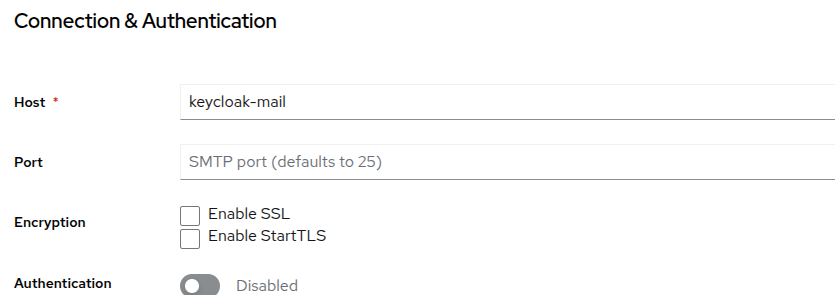
2. Configure the **Template** and **Connection & Authentication** sections with SMTP settings.
3. Ensure the SMTP server is installed within the Kubernetes cluster.
4. Provide SMTP server details (host, port, authentication credentials, etc.).
5. Save the configuration to enable email notifications for user registrations.
4. **Configure Authentication and reCAPTCHA**
1. Navigate to the **Authentication** tab and make a copy of the **registration** as **registration2** and bind it to Resgistration flow.
1. Edit the newly created registration flow, ensuring all step requirements remain the same.
2. Add reCAPTCHA in the **reCAPTCHA settings**.
3. Generate the reCAPTCHA site key and secret key from Google reCAPTCHA and configure them in Keycloak.
5. **Assign Client Roles**
1. Add the required **client roles** under each client to grant access to applications. For more refer [here](https://docs.openg2p.org/social-registry/deployment).
2. To provide complete access to **SR** or **PBMS** for self-registered users, create the necessary roles for the respective clients.
3. Assign all the created client roles to **Realm Settings → User Registration** to set default roles for self-registered users.
6. **Integrate Keycloak Credentials with Applications**
1. Make sure your application is already integrated with Keycloak login for authentication. If not, configure it for [Keycloak authentication](/products/pbms/_archive/previous-generation/functionality/administration/role-based-access-control/user-guides/configure-keycloak-authentication-provider-for-user-log-in.md).
7. **Verify Self-Registration**
1. Open **Socialregistry** or **PBMS** service in an incognito/private browser window.
2. Try to **login with keycloak** and it will redirect you to keycloak login page.
3. The **Register** link should now be visible.
4. Click the **Register** link to access the registration page.
5. Users can enter their details (name, email, and password) and proceed with 2 factor authentication to create an account.
6. Upon registration, users will receive a confirmation email (if email verification is enabled).
7. After confirming their email, users can log in to odoo application.
8. Once users are registered in Keycloak, they can use the same credentials wherever the app integrates with Keycloak authentication.
---
# Agent Instructions
This documentation is published with GitBook. GitBook is the documentation platform designed so that both humans and AI agents can read, navigate, and reason over technical content effectively. Learn more at gitbook.com.
## Querying This Documentation
If you need additional information that is not directly available in this page, you can query the documentation by asking a question.
Perform an HTTP GET request on the following URL with the `ask` and `goal` query parameters:
```
GET https://docs.openg2p.org/operations/deployment/deployment-guide/keycloak/enabling-keycloak-user-self-registration.md?ask=&goal=
```
`ask` is the immediate question: it should be specific, self-contained, and written in natural language.
`goal` is what the user is ultimately trying to achieve, the reason they need the answer. Sharing it helps GitBook give you a better, more relevant answer. A goal is most helpful when it describes the outcome the user wants rather than restating the question. For example, with `ask=how do I create an API token`, a goal like `automate deployments from our CI pipeline` lets GitBook tailor the answer to that use case.
The response will contain a direct answer to the question and relevant excerpts and sources from the documentation.
Use this mechanism when the answer is not explicitly present in the current page, you need clarification or additional context, or you want to retrieve related documentation sections.