> For the complete documentation index, see [llms.txt](https://docs.openg2p.org/llms.txt). Markdown versions of documentation pages are available by appending `.md` to page URLs; this page is available as [Markdown](https://docs.openg2p.org/operations/deployment/deployment-guide/implement-backup-with-barman.md).
# Implement backup with Barman
## Why to use Barman??
Barman is used for PostgreSQL backups because it provides a reliable and production-ready backup and recovery solution. Unlike simple cron jobs that only automate backups, Barman ensures data consistency, manages WAL archiving (which continuously stores all database changes), and supports point-in-time recovery, allowing the database to be restored to an exact moment before failure or data loss. This makes Barman more suitable for disaster recovery, large databases, and critical production systems where data safety and fast recovery are essential.
## Barman Backup and Recovery – Setup and Observations
## Architecture and Initial Setup
The backup infrastructure was architected with Barman installed on a local machine and PostgreSQL running on an Amazon EC2 instance. A secure SSL connection was established between the Barman server and the PostgreSQL server to ensure encrypted data transmission during backup and recovery operations.
Run the following command to install barman on `Server-B`
`sudo apt-get install barman barman-cli`
## SSH connections
The installation of barman sets up the `barman` user so you don’t need to take care of that.
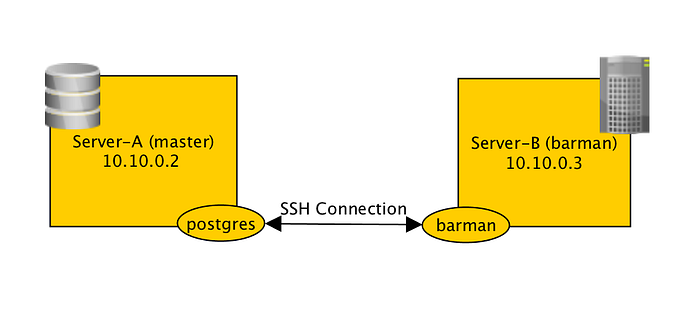
We want to establish *trusted* ssh connection between `postgres@server-a` and `barman@server-b` so that `server-a` can send WAL files to `server-b` and so that barman can on `server-b` trigger base backup, or launch recovery.
Press enter or click to view image in full size
Target architecture for our PostgreSQL Barman backup with SSH connections
Create private key for `postgres` and `barman` user on *respectively* *server-a* and *server-b*.
```
## Create a private key for postgres user
sudo -u postgres ssh-keygen -b 2048 -t rsa -N "" -C "postgres@server-a"## On server-b
## Create a private key for barman user
sudo -u barman ssh-keygen -b 2048 -t rsa -N "" -C "barman@server-b"
```
Copy the public key of `postgres` and `barman` *respectively* to `~/.ssh/authorized_keys` of `barman@server-b` and `postgres@server-a`.
You can test the connection is working by running:
```
## On server-a
sudo -u barman ssh postgres@10.20.0.2## On server-b
sudo -u postgres ssh barman@10.20.0.3
```
Both commands should allow you to connect to the specified server. If it does not, please fix it before continuing further.
## Configuration of barman
Now let’s configure our barman instance. On *server-b*, edit the `/etc/barman.conf` file, it should belong to the `barman` user.
We will start with the barman instance configuration:
```
[barman]
barman_home = /backup/barman
barman_user = barman
log_file = /var/log/barman/barman.log
compression = gzip
reuse_backup = link
backup_method = rsync
archiver = on
```
Now for every server you want to backup we will create a configuration.
```
[server-a]
description = “Server A DB”
ssh_command = ssh postgres@server-a
conninfo = host=10.10.0.2 user=postgres port=5432
retention_policy_mode = auto
retention_policy = RECOVERY WINDOW OF 7 days
wal_retention_policy = main
```
Don’t forget to configure PostgreSQL on *server-a* so that it can accept connections from *server-b*. You need to edit both `pg_hba.conf` and `postgresql.conf`.
```
# pg_hba.conf
host all all 10.10.0.3/32 trust
```
```
# postgresql.conf
listen_addresses = ’10.20.0.3’ # what IP address(es) to listen on;
```
Here we are listening on the IP of *server-a* so we can accept connection coming from this network.
## Setting up WAL archiving on your PostgreSQL server
WAL archive will backup every WAL files in *server-b*. A single missing WAL file or a corrupted WAL file will make a recovery fail, so it is important to make sure this step works properly.
First let’s find out where our WAL files will be archived on *server-b*.
```
barman show-server server-a | grep streaming_wals_directory
```
Copy it, we will call it STREAMING\_WALS\_DIRECTORY.
Back to PostgreSQL on *server-a*, in `postgresql.conf`, WAL archiving is controlled by the following parameters
```
archive_mode = onarchive_command = ‘rsync -a %p :STREAMING_WALS_DIRECTORY/%f`
```
`%p` is the location of the WAL files, `%f` its name. Reload PostgreSQL configuration or restart PostgreSQL.
## Testing the backup
At this stage you should have a workable backup configuration and working WAL archiving. Let’s start by testing it and make our first backup, *first let’s connect as `barman`user.*
List the available servers
```
$ barman list-serverserver-a — Server A DB
```
If you see this line:
```
WAL archive: FAILED (please make sure WAL shipping is setup)
```
Probably the database has not produced any WAL files yet or they already have been deleted or the rsync is failing. Check the PostgreSQL logs to find out more. But if the rsync is working correctly, basically if no data is being written to the database, the server won’t produce any WAL files and therefore there is nothing to backup. WAL files are created after a certain amount of data is produced.
## Application Deployment
Following the completion of the Barman configuration, a **registry Helm chart** was installed in the Kubernetes cluster. The deployment was configured to connect to the PostgreSQL database instance managed by Barman.
To verify the system's operational status, multiple user accounts were created through the application interface, generating sample data within the PostgreSQL database.
## Build a base backup
After verifying normal application operation, a base backup of the PostgreSQL cluster was initiated using Barman. A base backup is a full binary copy of the PostgreSQL data directory and serves as the foundation for recovery, with WAL files applied incrementally during restoration.
The backup was triggered from **server-b (Barman server)**:
```
$ barman backup server-a
```
If everything is successful, you should see the name of the backup when listing:
```
$ barman list-backup server-a
server-a 20180605T053654 — Tue Jun 5 05:36:59 2018 — Size: 30.2 MiB — WAL Size: 0 B
```
## Recovery Testing and Execution
To validate the database recovery procedure, a controlled recovery test was conducted. As part of the test, the registry Helm chart was intentionally removed from the Kubernetes cluster and reinstalled using the same configuration parameters to ensure application consistency after recovery.
The PostgreSQL database recovery was initiated from **server-b** (Barman server) by restoring a selected backup to **server-a** (PostgreSQL server). The available backups were verified, and the recovery was performed using the following commands:
```bash
barman list-backup server-a
barman recover server-a /var/lib/postgresql/18/main \
--remote-ssh-command "ssh postgres@server-a"
```
After the recovery process completed, PostgreSQL on **server-a** entered a stopped state as expected. The database service was manually restarted to restore normal operations:
```bash
sudo systemctl start postgresql
sudo systemctl status postgresql
```
Following the restart, the application successfully reconnected to the recovered database, and the previously created data was verified, confirming that the recovery process was completed successfully.
***
## Post-Recovery Application Behavior and Resolution
Following the PostgreSQL database restart after recovery, the application pods began exhibiting functional issues. Although the web interface remained accessible, continuous redirect loops were observed, indicating a database authentication failure between the application and the restored PostgreSQL instance. Investigation confirmed that the database restoration reverted the PostgreSQL user credentials to the state captured at the time of backup, while the Odoo application continued using a different password configured in its Kubernetes secrets. This credential mismatch prevented Odoo from establishing a successful database connection, resulting in pod startup failures and service unavailability.
To resolve the issue, the database credentials used by the Odoo application were identified and synchronized with PostgreSQL. The PostgreSQL user password was updated to match the password configured in the Kubernetes secrets, and all Odoo application pods were restarted to establish fresh database connections. After these steps, the application services stabilized, restored data was visible in the Odoo interface, and newly created user records were correctly reflected in PostgreSQL.
Identify the database credentials used by the Odoo application:
```
kubectl exec -n test -it -- env | grep -i postgres
```
Update the PostgreSQL user password on **server-a (PostgreSQL server)**:
```
psql -h -U postgres
ALTER USER registry_db_user WITH PASSWORD '';
\q
```
Restart the Odoo application pods:
```
kubectl rollout restart deployment registry-odoo -n test
```
Verify application stability:
```
kubectl get pods -n test
kubectl logs -n test deployment/registry-odoo
```
---
# Agent Instructions
This documentation is published with GitBook. GitBook is the documentation platform designed so that both humans and AI agents can read, navigate, and reason over technical content effectively. Learn more at gitbook.com.
## Querying This Documentation
If you need additional information that is not directly available in this page, you can query the documentation by asking a question.
Perform an HTTP GET request on the following URL with the `ask` and `goal` query parameters:
```
GET https://docs.openg2p.org/operations/deployment/deployment-guide/implement-backup-with-barman.md?ask=&goal=
```
`ask` is the immediate question: it should be specific, self-contained, and written in natural language.
`goal` is what the user is ultimately trying to achieve, the reason they need the answer. Sharing it helps GitBook give you a better, more relevant answer. A goal is most helpful when it describes the outcome the user wants rather than restating the question. For example, with `ask=how do I create an API token`, a goal like `automate deployments from our CI pipeline` lets GitBook tailor the answer to that use case.
The response will contain a direct answer to the question and relevant excerpts and sources from the documentation.
Use this mechanism when the answer is not explicitly present in the current page, you need clarification or additional context, or you want to retrieve related documentation sections.