# Link FA (Self Service)

This document contains step-by-step instructions for the beneficiaries to login self-service portal offered by SPAR (Social Payments Account Registry) and map his/her national ID with their respective bank account, mobile wallet account, and email wallet account.

## Prerequisites

* The user must have access to [SPAR](https://spar.explore.openg2p.net/selfservice/en/login) which is available in public portal via internet
* The user must have his/her National ID, bank account, mobile wallet, and email ID details.

## Procedure

1. Open the SPAR URL on your browser

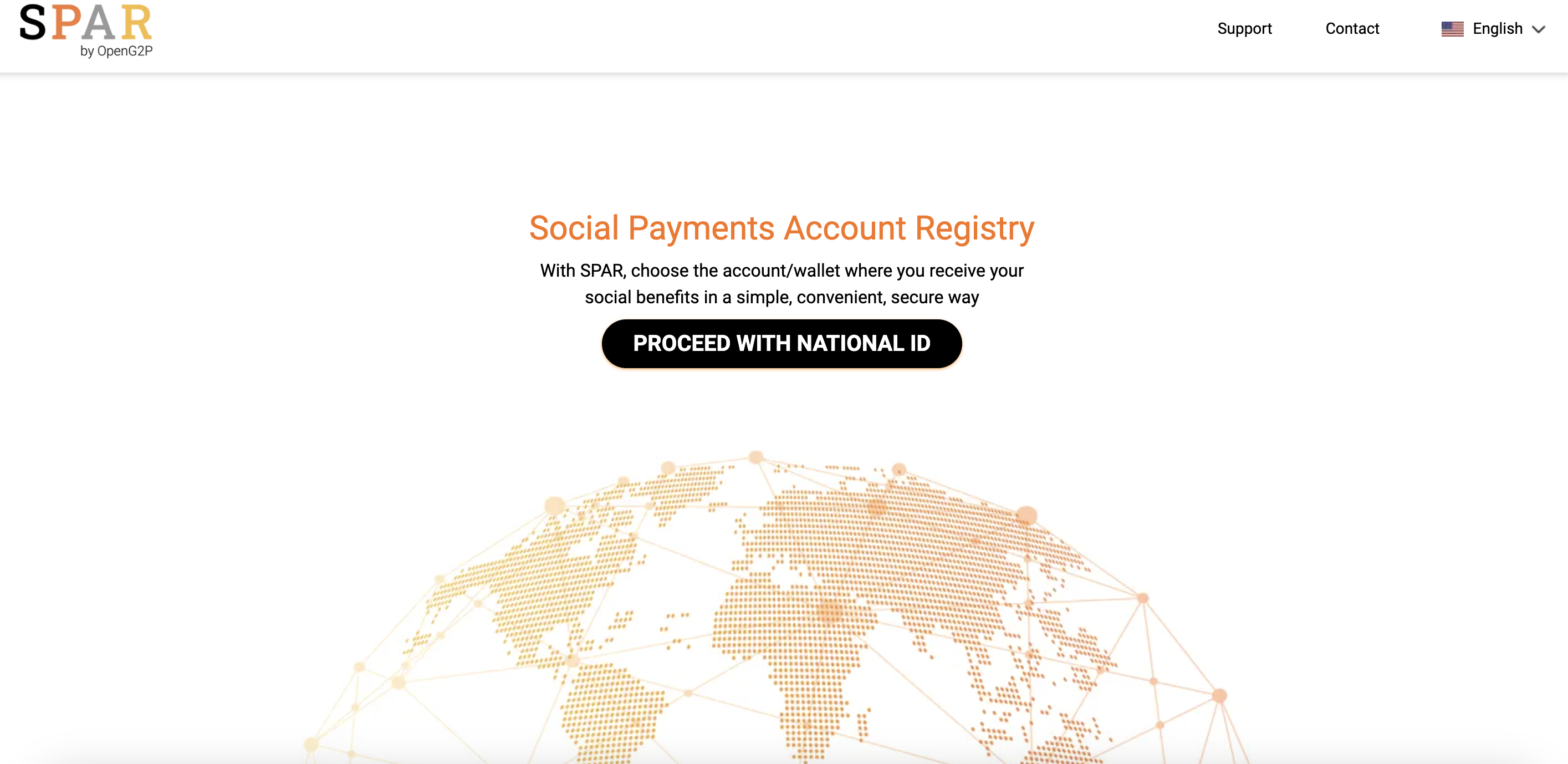
***SPAR*** self-service portal screen is displayed.

<figure><img src="https://1895884874-files.gitbook.io/~/files/v0/b/gitbook-x-prod.appspot.com/o/spaces%2FnKdOHLbjDdIln1QDNwSx%2Fuploads%2Fgit-blob-4aa8a9f29a404e0a5474b5a66df6b99776c8c22f%2Fspar-landing-single-login.png?alt=media" alt=""><figcaption></figcaption></figure>

2. Click the ***Proceed with National ID*** button.

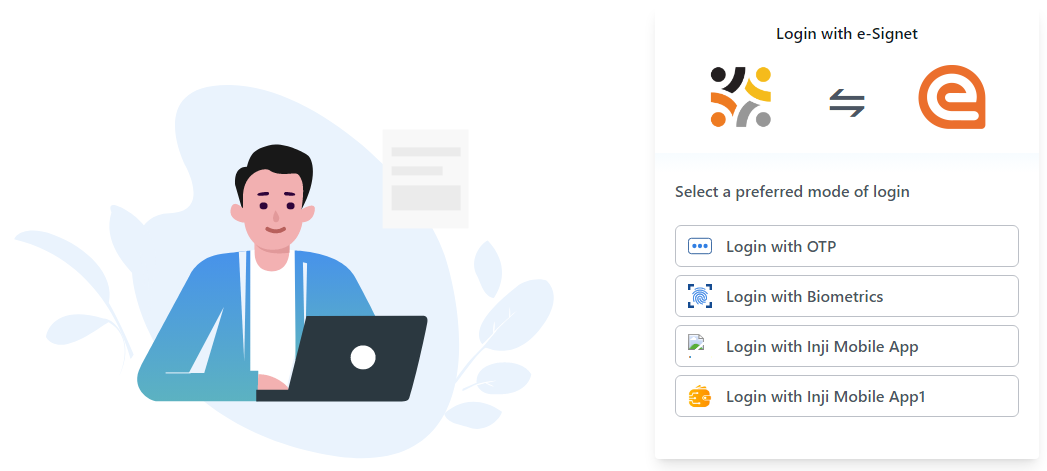
***Login with e-Signet*** screen is displayed.

<figure><img src="https://1895884874-files.gitbook.io/~/files/v0/b/gitbook-x-prod.appspot.com/o/spaces%2FnKdOHLbjDdIln1QDNwSx%2Fuploads%2Fgit-blob-5fdaf65c3ea2e97e718a2b4702585aa3dbb31c83%2Fe-signet-login.png?alt=media" alt=""><figcaption><p>eSignet login page.</p></figcaption></figure>

You can select your preferred mode of login.

* [Login with OTP](#login-with-otp)
* Login with Biometrics
* Login with Inji Mobile App
* Login with Inji Mobile App1

### Login with OTP

5. Click the ***Login with OTP*** button.

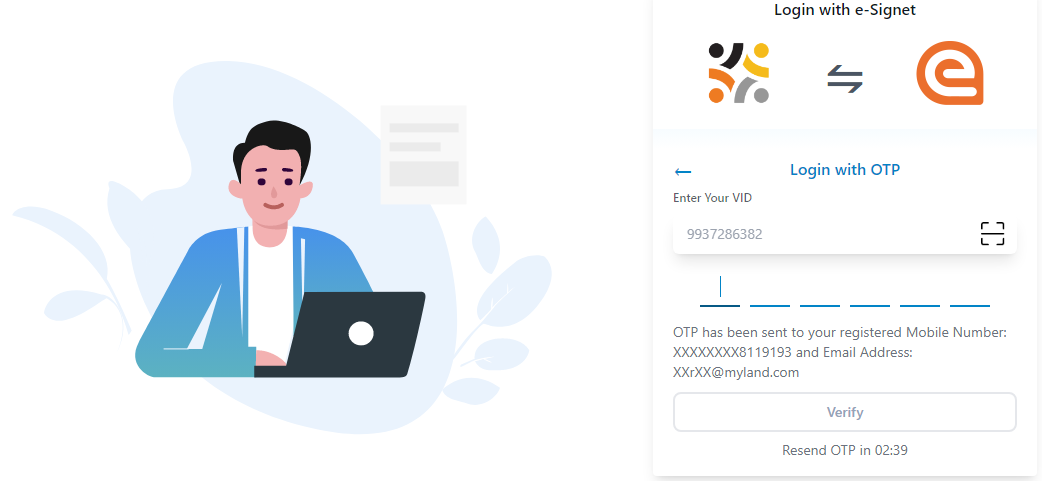
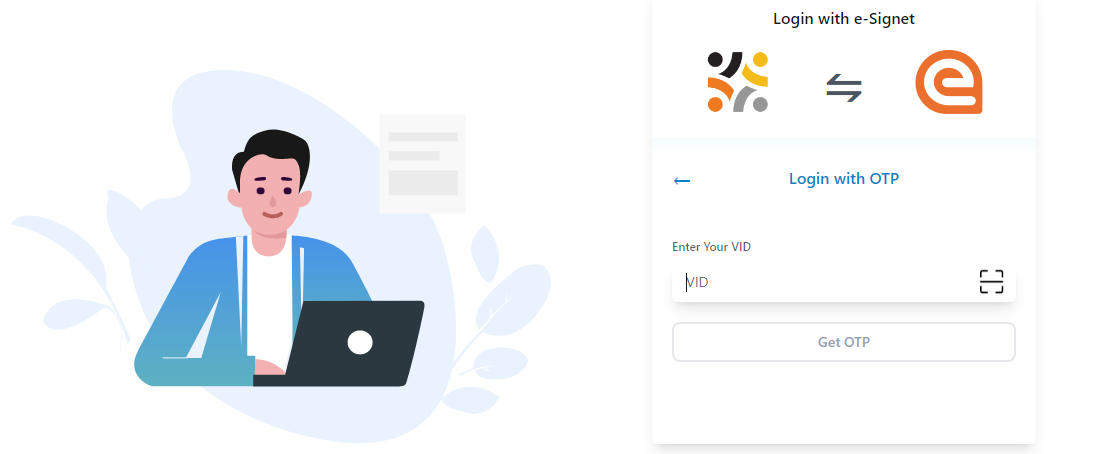
***Login with OTP*** screen is displayed.

<figure><img src="https://1895884874-files.gitbook.io/~/files/v0/b/gitbook-x-prod.appspot.com/o/spaces%2FnKdOHLbjDdIln1QDNwSx%2Fuploads%2Fgit-blob-97bcc4b753e6c07e9084526d969158b9b3e6d362%2Flogin-otp.png?alt=media" alt=""><figcaption><p>Login with OTP.</p></figcaption></figure>

7. Enter the ***VID*** number and click the ***Get OTP*** button.

You receive the OTP number in your registered phone number.

8. Enter the OTP number and click the ***Verify*** button.

<figure><img src="https://1895884874-files.gitbook.io/~/files/v0/b/gitbook-x-prod.appspot.com/o/spaces%2FnKdOHLbjDdIln1QDNwSx%2Fuploads%2Fgit-blob-781e3e0f801e61c31a06b4b6f124c1a990c4b518%2Flogin-otp-verify.png?alt=media" alt=""><figcaption><p>OTP verification.</p></figcaption></figure>

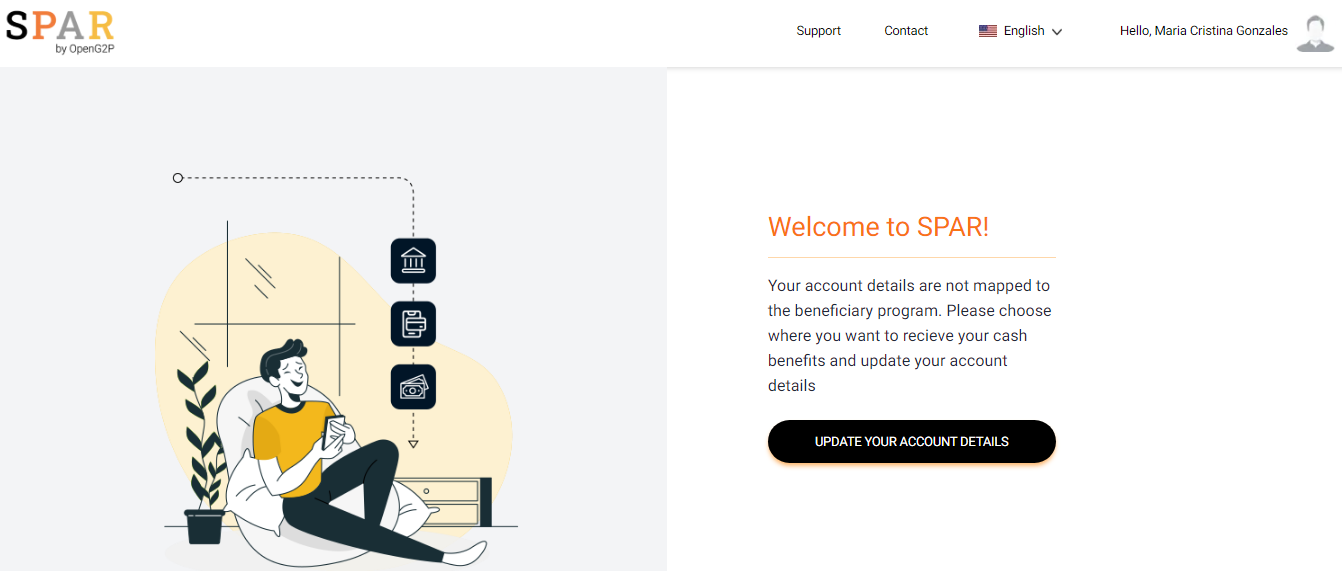
***SPAR*** home screen is displayed.

<figure><img src="https://1895884874-files.gitbook.io/~/files/v0/b/gitbook-x-prod.appspot.com/o/spaces%2FnKdOHLbjDdIln1QDNwSx%2Fuploads%2Fgit-blob-60046bd61864b199d68147a517d4ee1f84e54025%2Fspar-home-screen.png?alt=media" alt=""><figcaption></figcaption></figure>

In ***SPAR*** home screen, the features and their descriptions are given below:

| Feature                                                                                                                                                                                                                                         | Description                                                                                                      |
| ----------------------------------------------------------------------------------------------------------------------------------------------------------------------------------------------------------------------------------------------- | ---------------------------------------------------------------------------------------------------------------- |
| <img src="https://1895884874-files.gitbook.io/~/files/v0/b/gitbook-x-prod.appspot.com/o/spaces%2FnKdOHLbjDdIln1QDNwSx%2Fuploads%2Fgit-blob-16a7178930415580eaecfd4f5c6b731e643eb487%2Fusername-spar.png?alt=media" alt="" data-size="original"> | Displays your name.                                                                                              |
| Language drop-down                                                                                                                                                                                                                              | Select your preferred language from the drop-down. Your preferred language gets reflected in the user interface. |
| UPDATE YOUR ACCOUNT DETAILS                                                                                                                                                                                                                     | Click to update your account details.                                                                            |

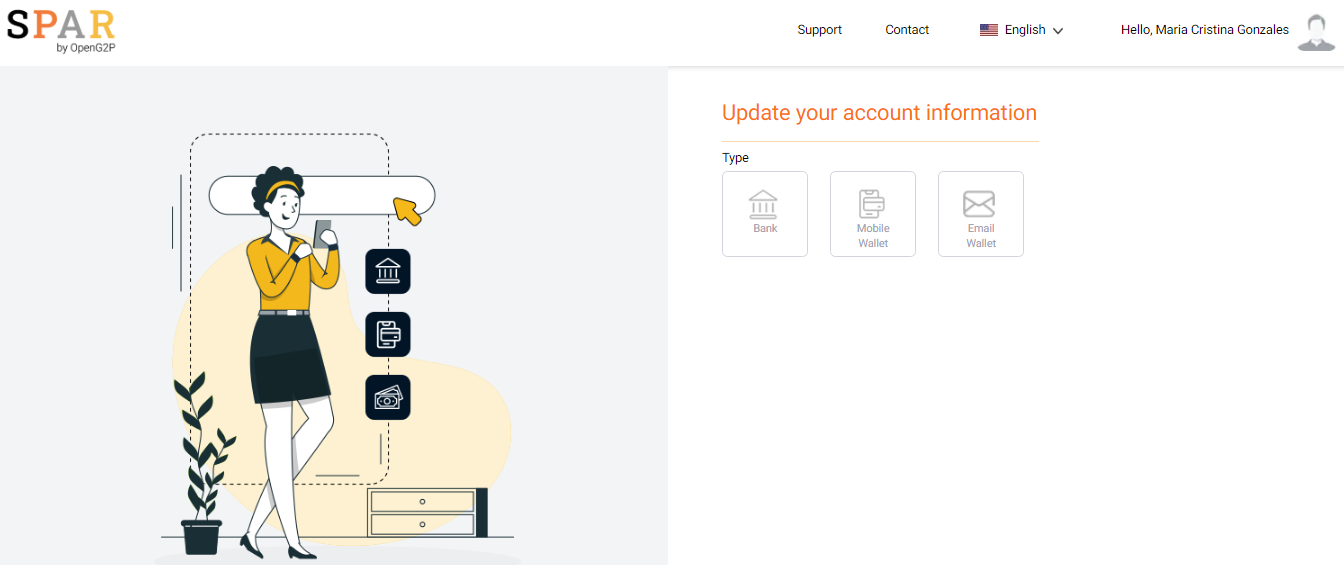
***Update your account information*** screen is displayed.
<figure><img src="https://1895884874-files.gitbook.io/~/files/v0/b/gitbook-x-prod.appspot.com/o/spaces%2FnKdOHLbjDdIln1QDNwSx%2Fuploads%2Fgit-blob-99d727fc3634ff92f42db01deb3014dd167adb6a%2Faccount-info-screen-spar.png?alt=media" alt=""><figcaption></figcaption></figure>

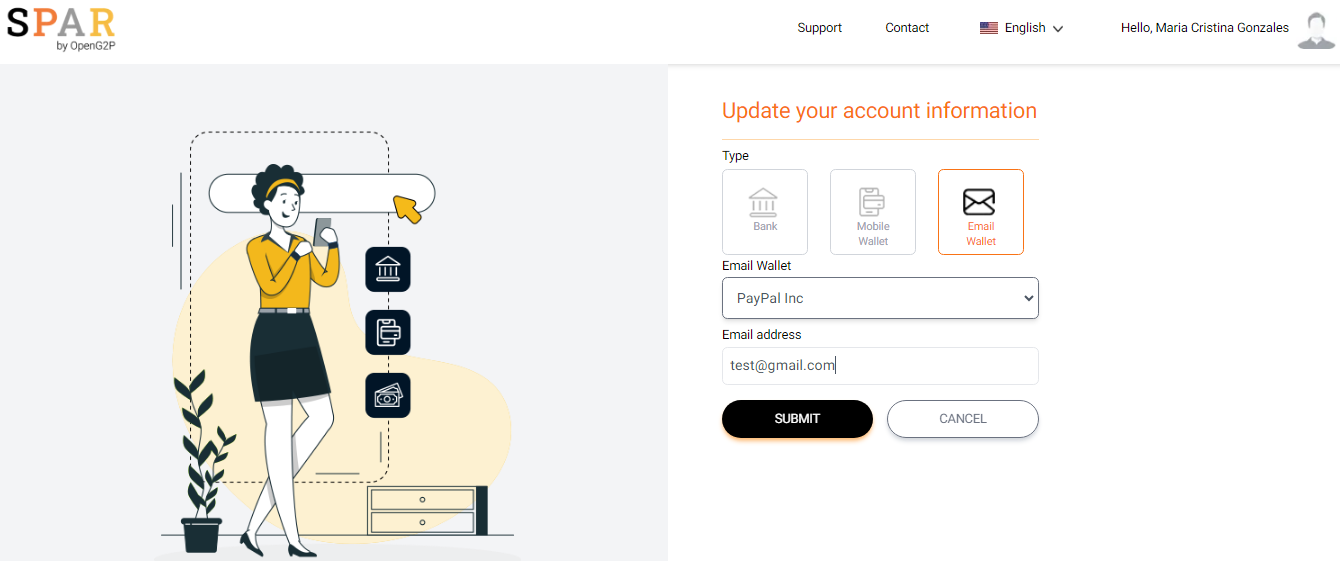
You can find three different modes to update your account details.

* Bank
* Mobile Wallet
* Email Wallet

{% tabs %}
{% tab title="Bank" %}

1. Click the ***Bank*** Type.

You can fill the valid bank details in the respective fields.

| Field         | Description                                        |
| ------------- | -------------------------------------------------- |
| Select Bank   | Select your bank in the drop-down.                 |
| Select Branch | Select your bank's branch in the drop-down.        |
| Type Account  | Enter the 10 digits of your bank's account number. |
| Submit        | Click the ***Submit*** button                      |

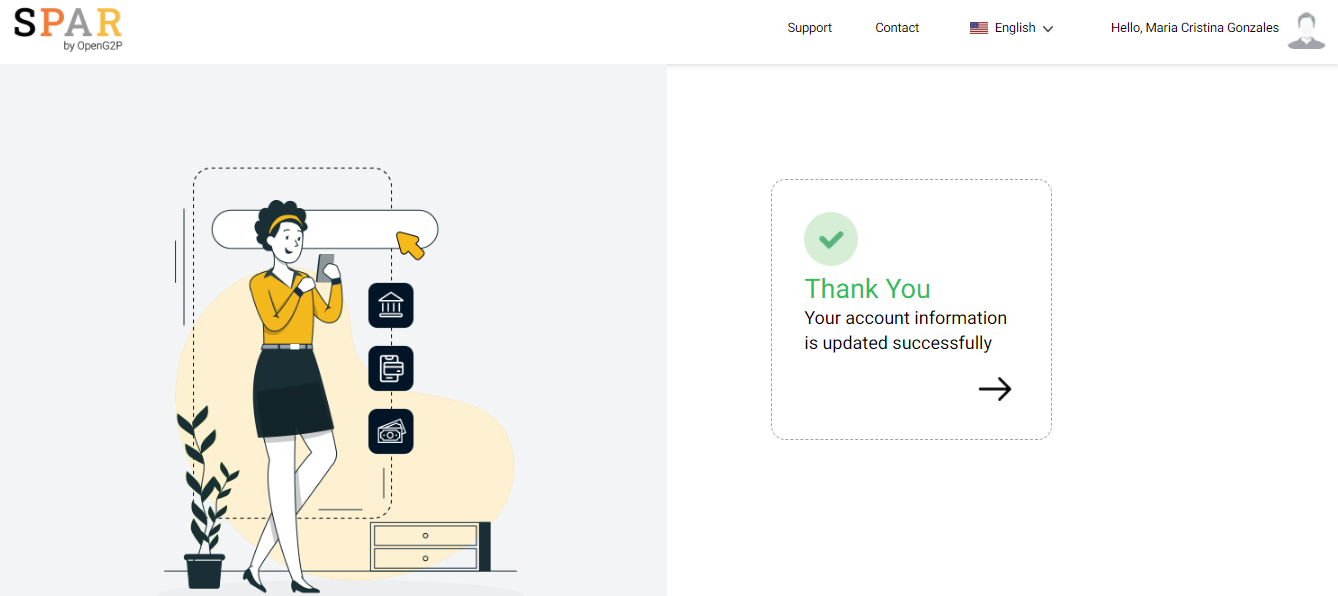
<figure><img src="https://1895884874-files.gitbook.io/~/files/v0/b/gitbook-x-prod.appspot.com/o/spaces%2FnKdOHLbjDdIln1QDNwSx%2Fuploads%2Fgit-blob-594c51eb3e77d9493591baeb9c4c72ff914784bd%2Fconfirmation-msg-bank-SPAR.png?alt=media" alt=""><figcaption></figcaption></figure>

A success message confirms that your account information is updated successfully via bank. Your National ID is successfully mapped to the bank account.
{% endtab %}

{% tab title="Mobile Wallet" %}

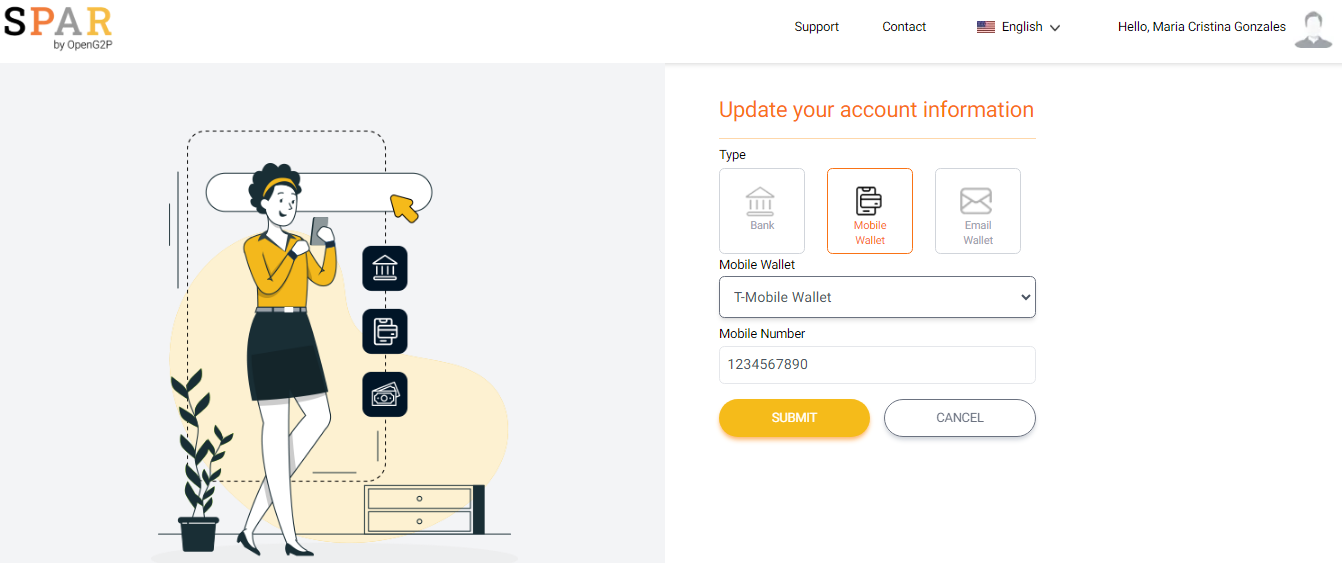
1. Click the ***Mobile Wallet*** Type.

You can fill the valid mobile wallet information in the respective fields.

<table><thead><tr><th width="334">Field</th><th>Description</th></tr></thead><tbody><tr><td>Select Mobile Wallet</td><td>Select your mobile wallet in the drop-down.</td></tr><tr><td>Type Mobile Number</td><td>Enter the 10 digits of your mobile wallet number.</td></tr><tr><td>Submit</td><td>Click the <em><strong>Submit</strong></em> button</td></tr></tbody></table>

<figure><img src="https://1895884874-files.gitbook.io/~/files/v0/b/gitbook-x-prod.appspot.com/o/spaces%2FnKdOHLbjDdIln1QDNwSx%2Fuploads%2Fgit-blob-5f874db5b314e528f84f7443ee2e909704d9ac83%2Fupdate-mobile-info-spar.png?alt=media" alt=""><figcaption></figcaption></figure>

A success message confirms that your account information is updated successfully via mobile wallet. Your National ID is successfully mapped to the bank account.
{% endtab %}

{% tab title="Email Wallet" %}

1. Click the ***Email Wallet*** Type.

You can fill the valid email wallet information in the respective fields.

| Field               | Description                                |
| ------------------- | ------------------------------------------ |
| Select Email Wallet | Select your email wallet in the drop-down. |
| Type Email address  | Enter the valid email address.             |
| Submit              | Click the ***Submit*** button              |

<figure><img src="https://1895884874-files.gitbook.io/~/files/v0/b/gitbook-x-prod.appspot.com/o/spaces%2FnKdOHLbjDdIln1QDNwSx%2Fuploads%2Fgit-blob-b1cc24a40e608d00f0628a7ab2f44a6bfd13aec3%2Fupdate-email-info-spar.png?alt=media" alt=""><figcaption></figcaption></figure>

A success message confirms that your account information is updated successfully via email wallet. Your National ID is successfully mapped to the bank account.
{% endtab %}
{% endtabs %}