> For the complete documentation index, see [llms.txt](https://docs.openg2p.org/llms.txt). Markdown versions of documentation pages are available by appending `.md` to page URLs; this page is available as [Markdown](https://docs.openg2p.org/1.3/pbms/functionality/disbursement-cycles/in-kind-transfer/user-guides/create-a-product-in-inventory.md).
# Create a Product in Inventory
This document provides instructions to add an in-kind product to the Inventory module.
## Prerequisites
* The user must have access to OpenG2P systems.
* The user must have Program Manager role.
## Procedure
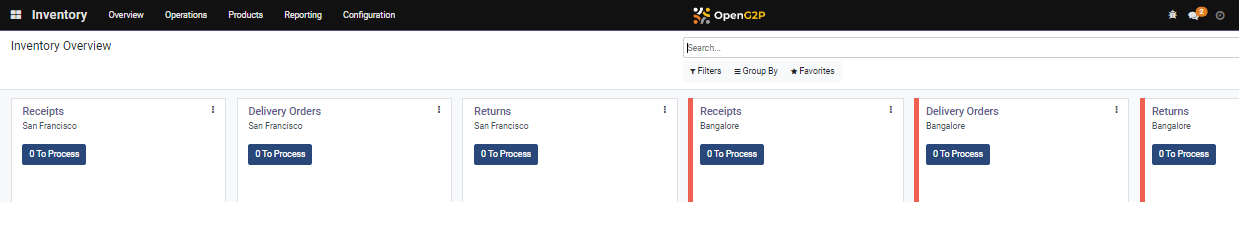
1. Click the main menu icon  and select ***Inventory***.
***Inventory*** ***Overview*** screen is displayed.
2. Click the ***Products*** in the menu bar and then click ***Products***.
***Products*** screen is displayed.
3. Click the ***Create*** button.
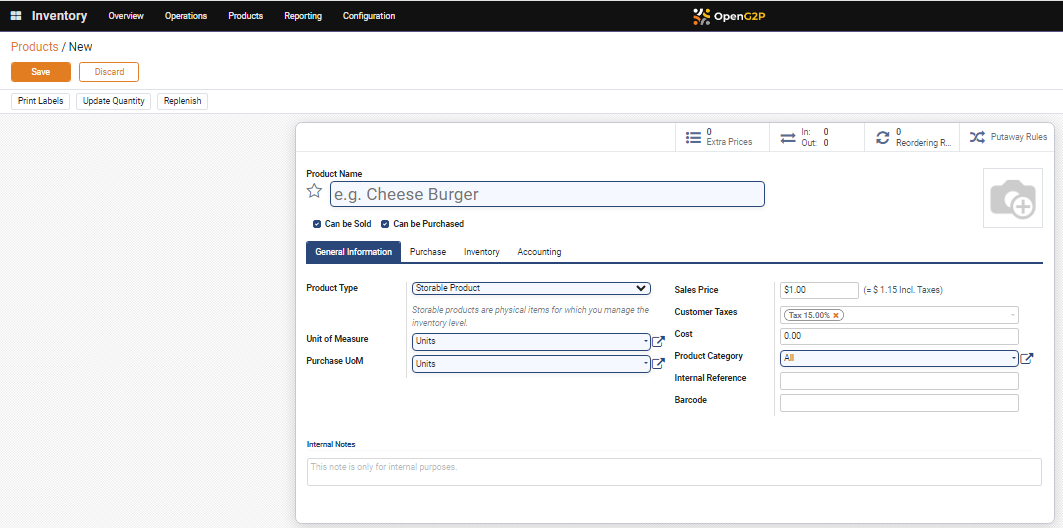
***Products/New*** screen is displayed.
4. Enter the Product Name in the ***Product Name*** field.
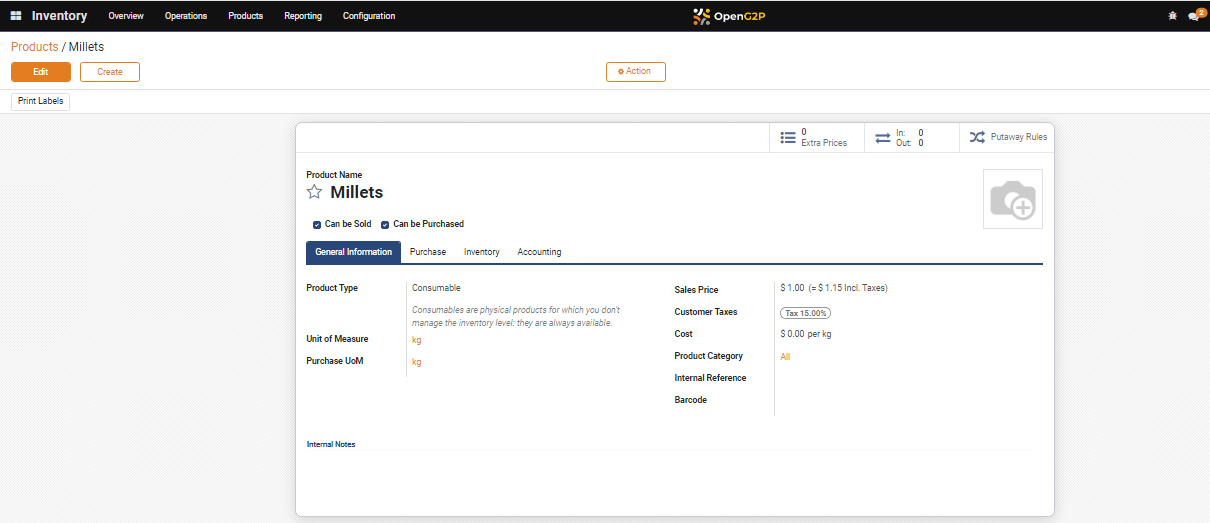
For example, here, the product name is entered as Millets.
5. Check the appropriate option. The available options are:
* Can be Sold
* Can be Purchased
6. Click the ***General Information*** tab.
The fields and their descriptions available in the General Information tab are:
| Field | Description |
| ------------------ | ------------------------------------------------------------------------------------------------------------------------------------------------------------------------------------------------------------------------------------------------------------- |
| Product Type |
Select the appropriate option. The available options are:
Consumable
Service
Storable Product
Note:
To create a product choose the option Consumable
|
| Unit of Measure |
In the drop-down, click Search More...
Search: Unit of Measure screen is displayed.
Select the relevant unit of measure.
For example, here, unit of measure is selected as kg.
|
| Purchase of UoM | It auto-populates the value selected in the unit of measure field |
| Sales Price | Enter the sales price |
| Customer Taxes | Enter the customer tax |
| Cost | Enter the cost |
| Product Category | Enter the product category |
| Internal Reference | Enter the internal reference |
| Barcode | Enter the barcode |
| Internal Notes | Enter additional information, if any. |
| Save | Click the ***Save*** button to save the data |
| Discard | Click the ***Discard*** button to exit from ***Products/New*** screen |
***Products/{Product Name}*** screen is displayed.
The newly added product name Millets is added in the Products screen.
This completes the process of creating a new product in the Inventory module.
---
# Agent Instructions
This documentation is published with GitBook. GitBook is the documentation platform designed so that both humans and AI agents can read, navigate, and reason over technical content effectively. Learn more at gitbook.com.
## Querying This Documentation
If you need additional information that is not directly available in this page, you can query the documentation by asking a question.
Perform an HTTP GET request on the following URL with the `ask` and `goal` query parameters:
```
GET https://docs.openg2p.org/1.3/pbms/functionality/disbursement-cycles/in-kind-transfer/user-guides/create-a-product-in-inventory.md?ask=&goal=
```
`ask` is the immediate question: it should be specific, self-contained, and written in natural language.
`goal` is what the user is ultimately trying to achieve, the reason they need the answer. Sharing it helps GitBook give you a better, more relevant answer. A goal is most helpful when it describes the outcome the user wants rather than restating the question. For example, with `ask=how do I create an API token`, a goal like `automate deployments from our CI pipeline` lets GitBook tailor the answer to that use case.
The response will contain a direct answer to the question and relevant excerpts and sources from the documentation.
Use this mechanism when the answer is not explicitly present in the current page, you need clarification or additional context, or you want to retrieve related documentation sections.